-

-

-

-

-
CopyToClipboard

- Find your load
- Load details
- Request detention
- Choose the right stop
- Enter times
- Select supporting docs
- Final check
- What happens next
Step-by-Step: How to Submit Your Request
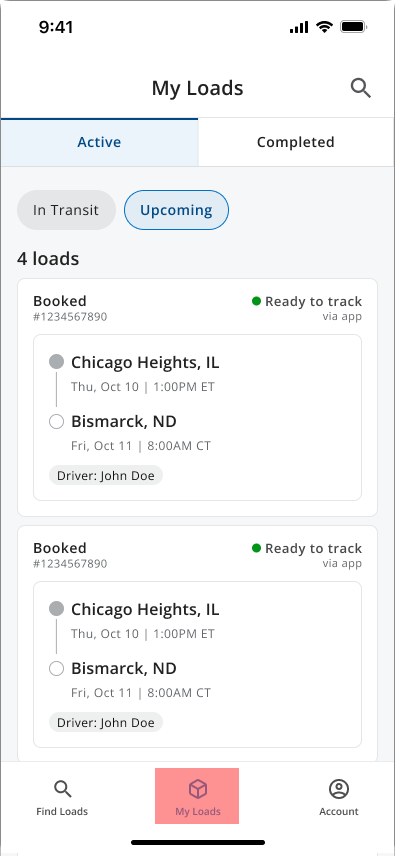
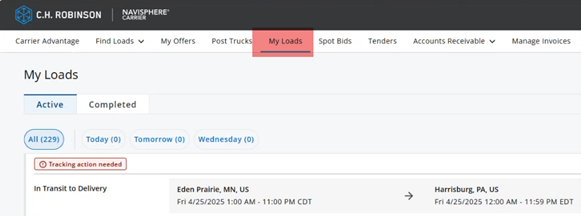
1. Find YOUR Load
- Log into Navisphere Carrier.
- Go to the My Loads menu item.
- Locate the load you want to request detention for.
Mobile view
Desktop view
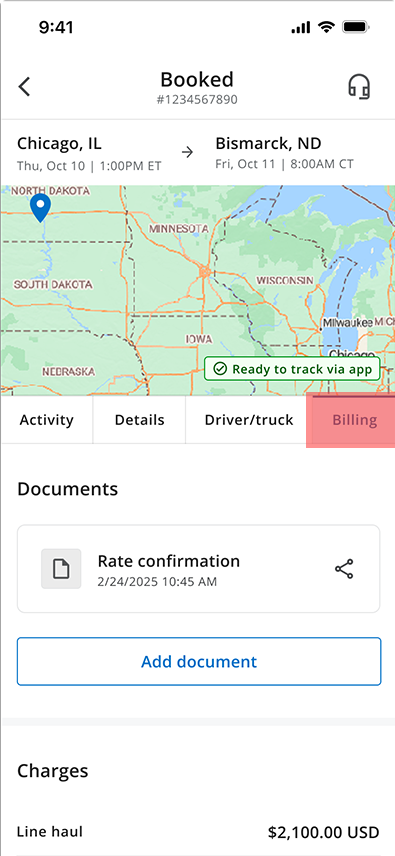
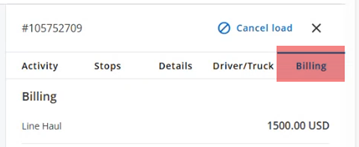
2. Go into the load details section
- Click on the load.
- Navigate to the billing tab inside that load.
Mobile view
Desktop view
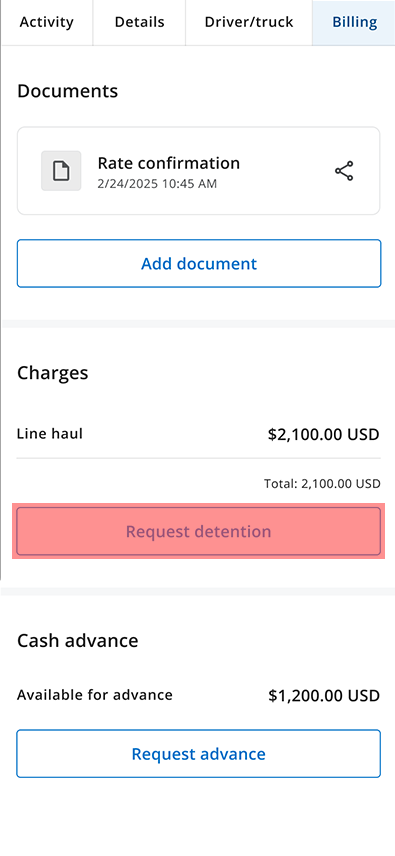
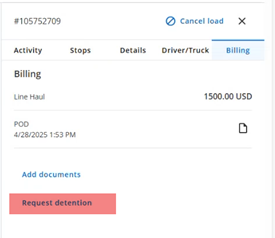
3. Request detention
- Click the request detention link.
Mobile view
Desktop view
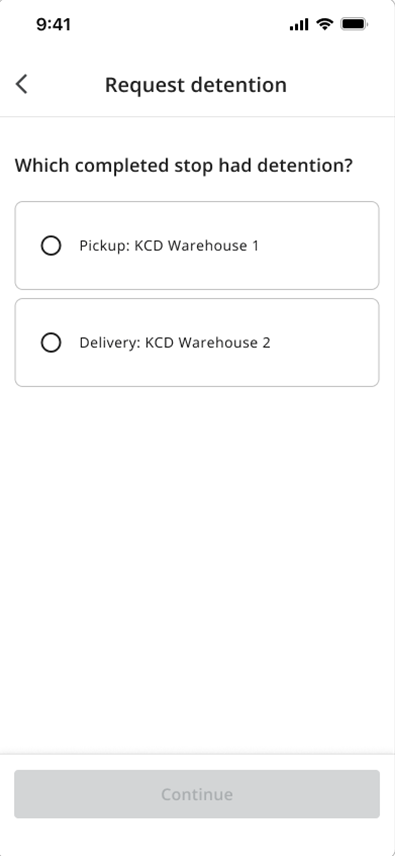
4. Choose the right stop
- Select the stop you’re requesting detention for.
Mobile view
Desktop view
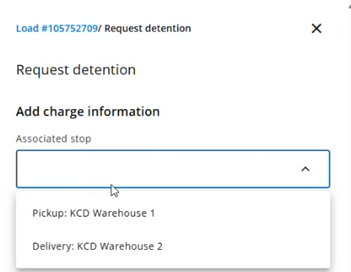
Note: If you already requested detention for that stop, you'll get an error message and won't be able to submit again.
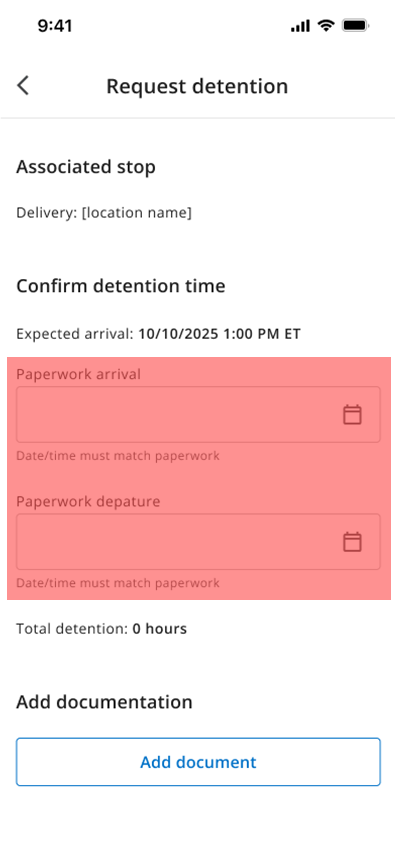
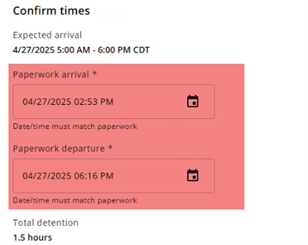
5. Enter the times carefully
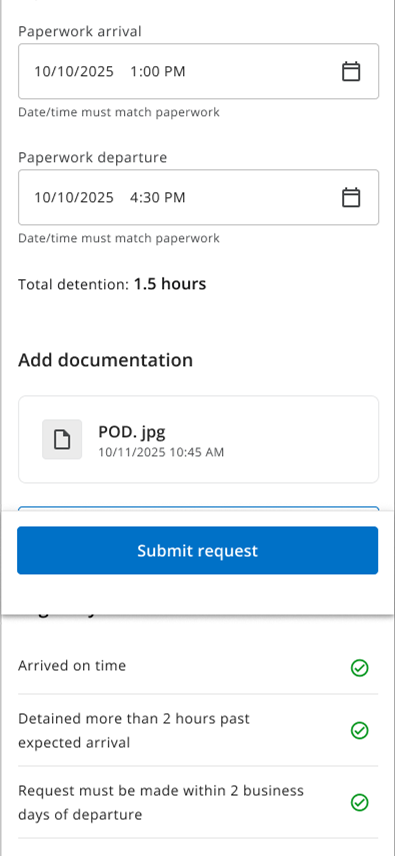
The system requires you to enter the arrival and departure times that appear in the paperwork.
If the times on the screen don't match what's on the paperwork, it will not pass validation.
Mobile view
Desktop view
6. Select your supporting documents
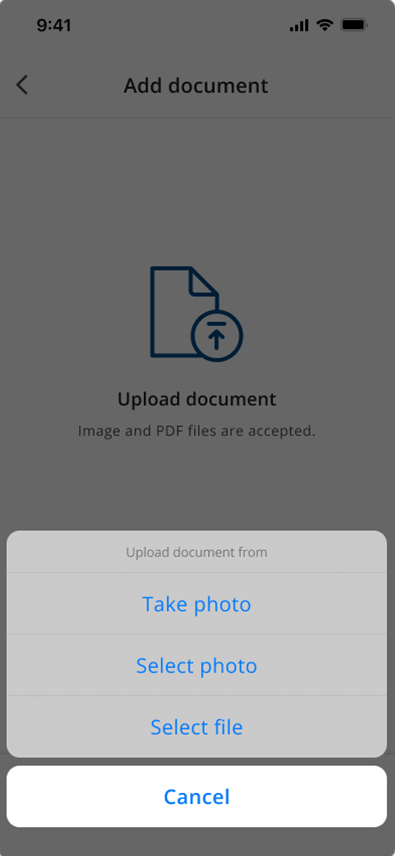
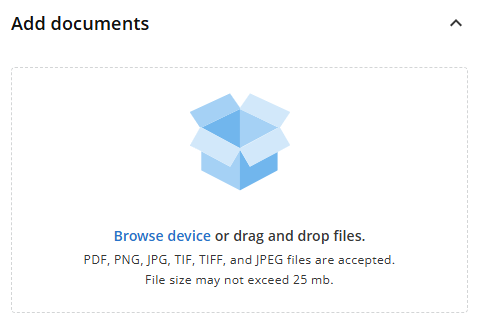
You'll now be asked to select the document that proves the times you’re requesting detention for.
- Any documents already uploaded to the shipment will show up.
- If the right document isn’t available:
- Upload the correct document using the add documents modal on the screen.
Mobile view
Desktop view
7. Final check: Eligibility review
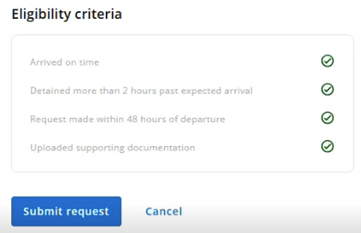
Once you've selected your document, the system will verify if you meet the four eligibility rules.
- If you meet all the criteria, the Submit Request button will become active.
- If you miss anything, the button will stay grayed out and you won't be able to submit.
Mobile view
Desktop view
8. What happens after you submit?
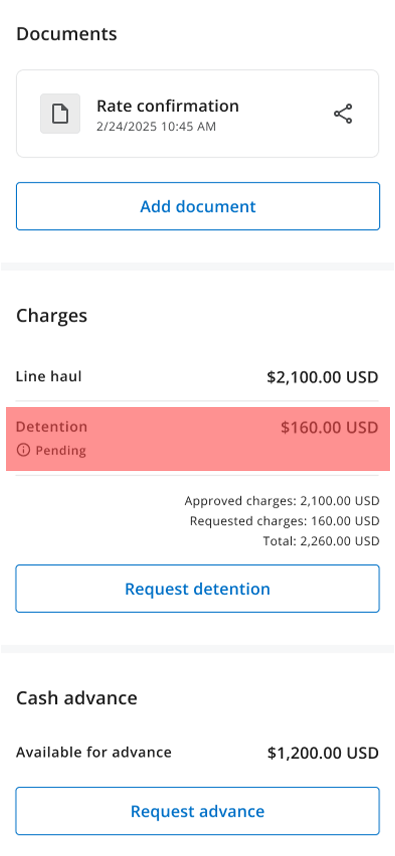
Once you've selected your document, the system will verify that this is a valid detention request.
Our system uses AI to validate your request by:
- Looking for the times you entered in Navisphere Carrier and matching them to the paperwork.
- Comparing those times to actual known shipment times.
If everything matches:
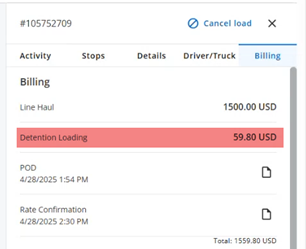
- You'll see the detention money added to your shipment.
- Note: It may take a few minutes for money to show up on the shipment.
If something doesn't match:
- Your request goes into an exception queue.
- Your capacity rep will manually review and either approve or reject it.
Mobile view
Desktop view
- Find your load
- Load details
- Request detention
- Choose the right stop
- Enter times
- Select supporting docs
- Final check
- What happens next