Sign up to haul with C.H. Robinson
Register as a contract carrier to book loads from the largest provider in North America.
Create a Navisphere Carrier account
Set up a Navisphere Carrier account so you can find, offer, book, manage, and get paid on loads.
Réinitialiser votre mot de passe oublié
Obtenez un lien pour réinitialiser votre mot de passe en fournissant le nom d’utilisateur sur votre compte.
Support Topics
Getting started
Freight factoring and digital banking
Account management
Paperwork and payment
Finding and booking loads
Carrier Advantage Program
C.H. Robinson Fuel Card
Navisphere Technology
Frequently asked questions
Q: How do I sign up to to be a contract carrier for C.H. Robinson?
Sign up to haul for C.H. Robinson through Highway, a streamlined registration process designed to get you on the road faster. Click here to get started. Simply follow the prompts, which will explain what documents you need to get set up as a contract carrier.
Q: How do I create a Navisphere Carrier account?
Creating a Navisphere Carrier account is quick and easy. Simply fill out the details on the registration page and hit submit. Once approved, you’re all set to find, offer, book, haul and get paid on loads. Navisphere Carrier supports your business wherever you are with more loads than any other provider in North America.
Q: I can’t login to Navisphere Carrier. My login doesn’t work what should I do?
If you haven’t registered for an account yet, you’ll need to first create one by registering your email here. If you have an existing account, you can reset your password by using the Forgot Password option on the login page and receive guided instructions to reset via email.
Q: How do I book a load in Navisphere Carrier?
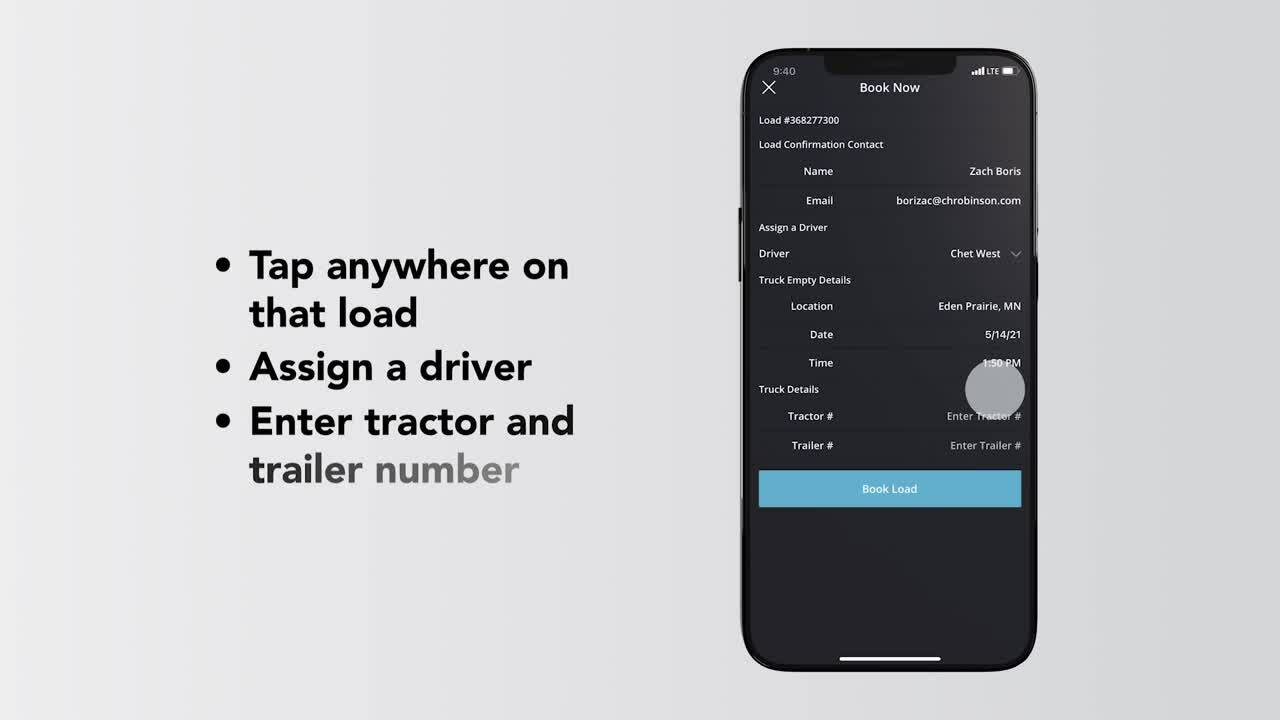
The Navisphere Carrier app gives you the power to find the freight you want, make offers and book instantly. To get started, tap find loads, all available loads within 100 miles show up and list format. To get more info, tap anywhere on that load to view additional details. If you like a load, hit book then simply assign a driver, into your tractor and trailer number and tap book load to complete.
Interested in a load and want to make an offer? Select make offer to propose a new rate. You'll receive a response within seconds. If you want to see the status of loads have made an offer on or a history of your bids, tap the “My Offers” tab to review. You can watch a how-to video of this here.
Q: How can I see the loads I’ve booked in Navisphere Carrier?
You can always see the loads you booked by tapping the “My Loads” screen in the Navisphere Carrier app and filter by three statuses: booked, assigned, and in transit. If you don't see these options, just tap the eye icon. If you'd rather see the loads on the map, just hit the map icon. Select any combination to see corresponding loads on the map. For example: with booked selected zoom in or select the location icons to see more details about your loads in that area. The list icon will take you back to the list view anytime. You can watch a how-to video of this here.
Q: Comment puis-je relier mon ELD/GPS à C.H Robinson ?
Connectez votre ELD/GPS en visitant notre page de configuration du suivi des transporteurs. À partir de là, trouvez le mode de connexion qui vous convient et suivez les instructions incluses. Nous sommes fermement décidés à aider les transporteurs à garder le contrôle de leurs propres données. Nous ne suivons que les informations spécifiques à chaque chargement afin que les expéditeurs sachent clairement où se trouvent leurs marchandises. Lorsqu'un chargement est marqué comme livré, le suivi s'arrête immédiatement. Voici un guide simple et rapide sur la transparence des données.
Q: I’ve submitted all my load paperwork, why haven’t I been paid?
There are several reasons why a load payment has not been released. The most common reasons include:
- Missing or illegible paperwork
- Load number is not written on each document received
- Correct load number not written on each document received
- Bill of lading (BOL) is not signed
- Damage/shortage is noted on the BOL; in this case, your load representative will have to approve payment after reviewing the situation
- Missing carrier invoice; a load confirmation is not an acceptable invoice; the invoice should contain the load number, balance due, and your carrier ID number.
Q: Quelles sont les attentes en matière de suivi pour le programme Carrier Advantage ?
Les transporteurs contractuels de C.H. Robinson sont tenus de fournir des mises à jour numériques de suivi et de traçabilité dans les délais suivants, tout au long de la durée de vie d'un chargement :
- Pré-enlèvement et prélivraison : 4 heures et 2 heures avant l'arrivée du chauffeur. Si le chauffeur arrive en retard, nous avons besoin d'une mise à jour 4 heures et 2 heures avant l'heure de clôture du rendez-vous.
- Notifications lors du transit : toutes les 4 heures pendant le transit
- Notifications d'arrivée: 30 minutes après l'arrivée ; 30 minutes après le départ
Carrier resources
Book and manage loads
Cross-Border resources
Traqueur PAPS
Fret du Canada aux États-Unis
Utilisez le Système de suivi du traitement avant l’arrivée (PAPS) pour rechercher un numéro PAPS pour le fret transporté du Canada vers les États-Unis.
Traquer PARS/Recherche rapide
Fret des États-Unis vers le Canada
Utilisez le suivi du système d'examen avant l'arrivée (PARS) pour rechercher un numéro PARS pour le transport de fret des États-Unis vers le Canada.
Recherche Aviso de Cruce (AVC)
Fret importé et exporté vers/depuis le Mexique
Utilisez la recherche Aviso de Cruce (AVC) pour rechercher un numéro Aviso de Cruce pour le fret en provenance de l’autre côté de la frontière entre les États-Unis et le Mexique.